
LimeFiber Customer Portal: Check Your Bill, Usage & Connection Expiry Online
Waiting for a text message to know when your fiber connection is about to expire, or calling in just to check your outstanding balance, is no longer the only option. The LimeFiber customer portal at app.limefiber.ke lets both new and existing LimeFiber customers across Nairobi check their bill, data usage, support tickets, and connection status themselves, any time of day.
What You Can Do in the LimeFiber Customer Portal
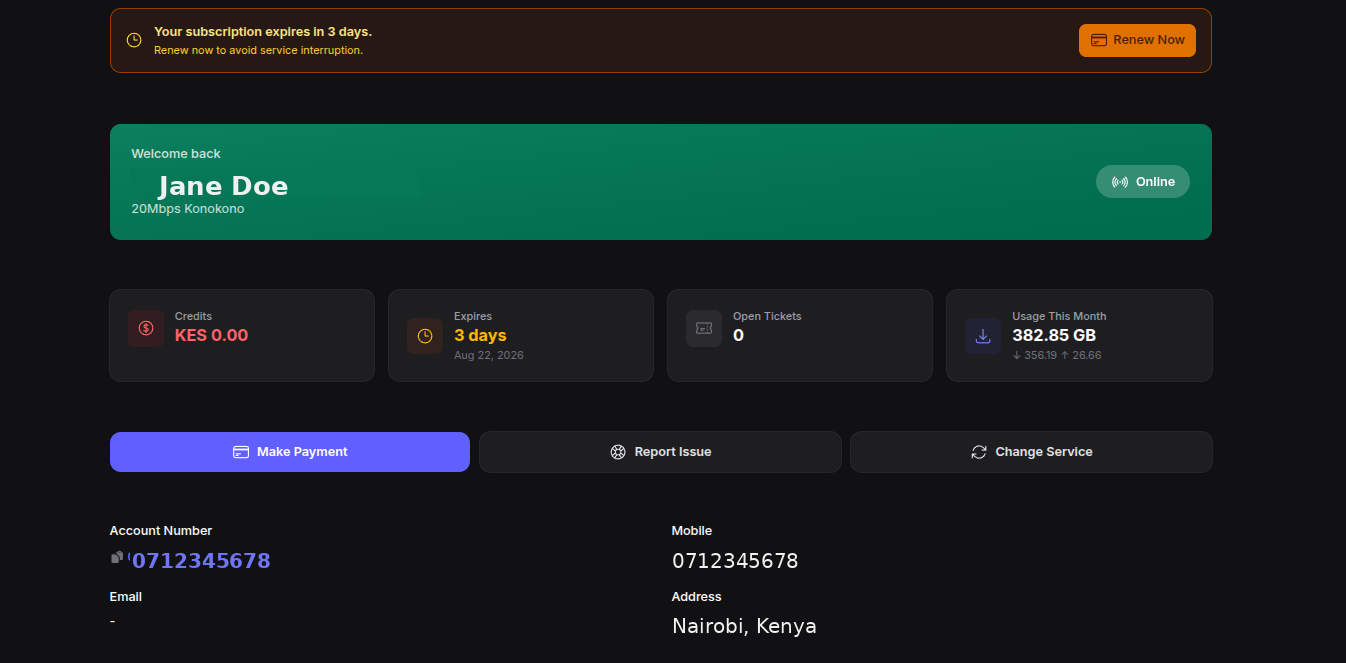
Once you are signed in, your dashboard gives you a quick snapshot of your account, plus quick actions that cover most of what customers otherwise call or WhatsApp us for:
Check your outstanding balance and recent M-Pesa payment history
See your data usage for the current month, download and upload
Check your subscription status and exactly when your connection expires
Monitor your usage against your plan's Fair Usage Policy limits
View and track support tickets you have raised
Make a payment or request a package change directly from the dashboard
Everything shown is tied to the phone number on your account, so what you see in the portal is exactly what our support team sees on their end.
Creating Your LimeFiber Portal Account
If you have not signed up yet, visit app.limefiber.ke and select "sign up for an account" on the sign-in page. You will need your first name, last name, phone number, and a password. Once registered, sign back in with just your phone number and password going forward.
Forgotten your password? Use the "Forgot password?" link on the sign-in page rather than creating a second account or calling in for a reset — it takes less time than a support call.
Checking When Your Connection Expires
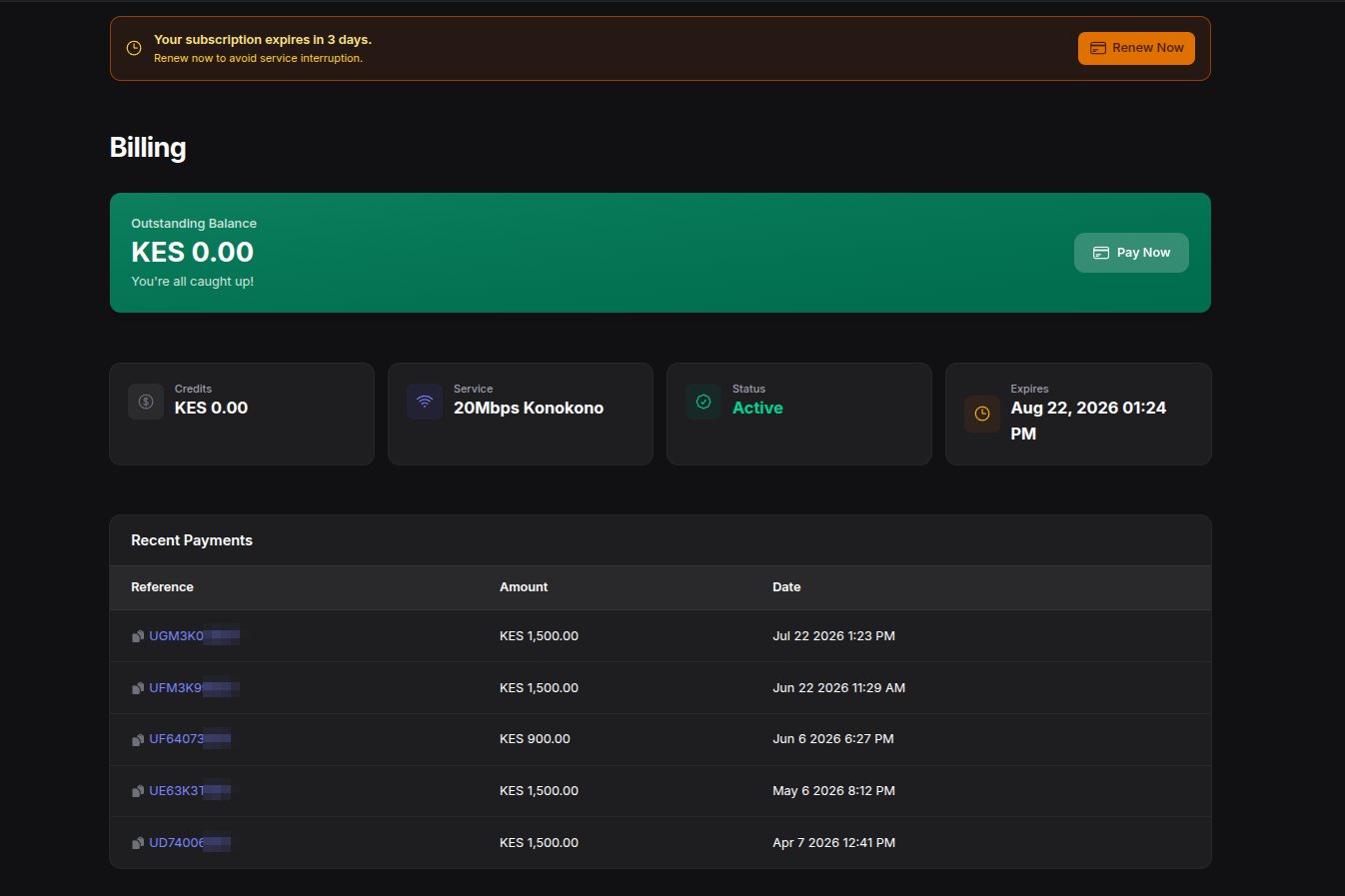
Your subscription card on the dashboard shows your current status at a glance, and the Billing page has its own dedicated Expires field with the exact date and time. Once you are inside your last few days, an orange banner appears across every page of the portal — "Your subscription expires in 3 days" — with a one-tap Renew Now button, so it is hard to miss even if you were not planning to check.
LimeFiber also sends a reminder message before your subscription runs out, but you do not have to wait for it — you can check your exact expiry date in the portal at any time, from any device.
Viewing Your Billing History and Paying Online
The Billing page shows your outstanding balance, current credits, and a full list of recent payments with their M-Pesa reference and date. If your balance is at zero, you will see a clear "you're all caught up" confirmation instead of having to guess where you stand. A Pay Now button lets you settle an outstanding balance without leaving the portal.
If your service has been paused over a payment mix-up rather than a technical fault, the portal is the fastest way to confirm your balance before you reach out.
Monitoring Your Data Usage and Fair Usage Policy
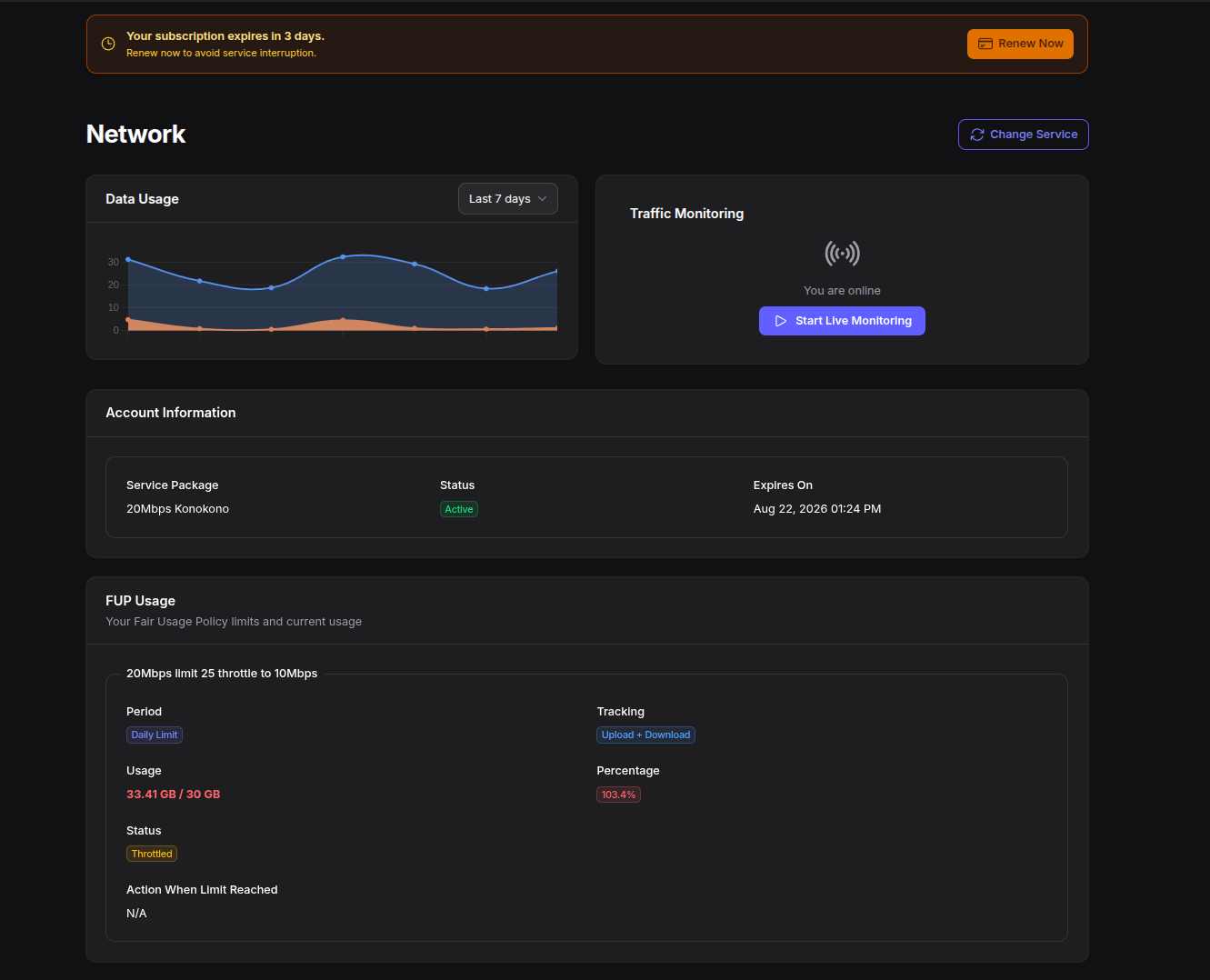
The Network tab breaks down your data usage over the last 7 days and shows your current package's Fair Usage Policy limit — for example, a daily cap that throttles your speed for the rest of the day once you cross it. If your connection has felt slower than usual, this is often the first place to check before assuming it is a fault: the portal will show you the limit, your current usage against it, and whether you are currently being throttled.
Tracking a Support Ticket
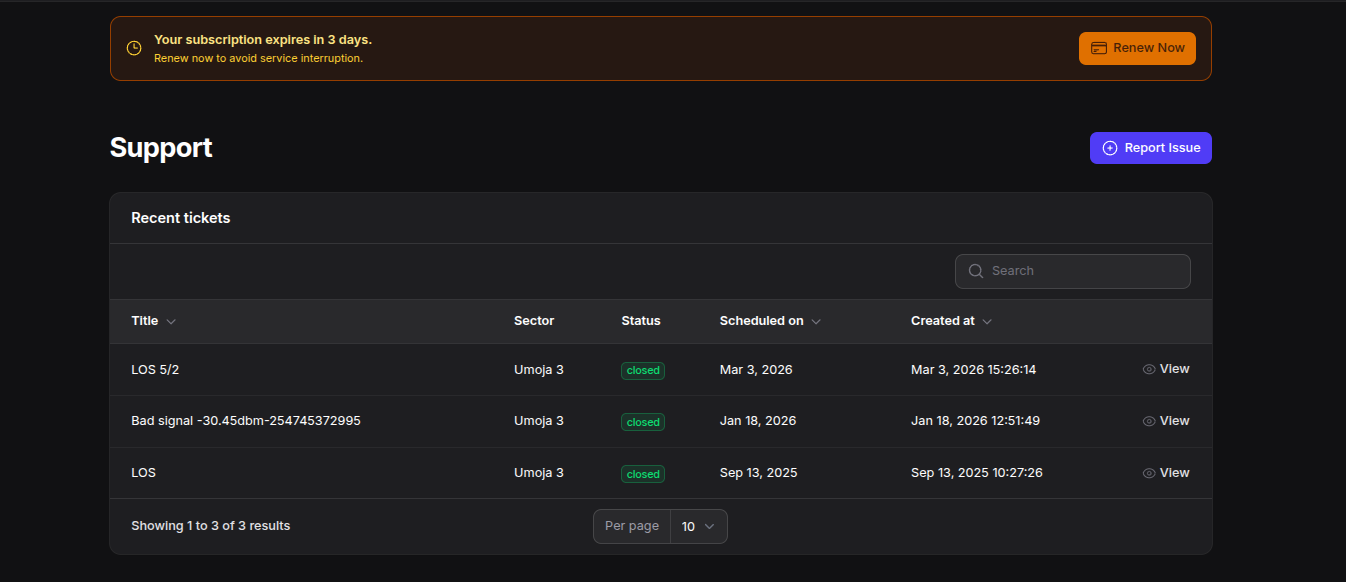
Every issue you report through Report Issue on the dashboard, or the homepage support form, shows up on the Support page along with its status and scheduled date. Instead of calling in for an update, check the ticket status directly from the portal.
Installing the Portal on Your Phone
Once you are signed in, you will see an option to install the portal as an app for a faster, native experience. It skips the app store entirely — a prompt in the portal itself handles the install, so your bill, usage, and ticket status are one tap away instead of a browser search away.
One Login for Your Whole Account
Between checking your bill, tracking a ticket, and confirming your connection's expiry date, the LimeFiber customer portal covers most of the reasons customers reach out to us in the first place. The same dashboard also has a Change Service option if your household's needs have outgrown your current plan — or browse current speeds and prices on our packages page first.
If you are still stuck on something the portal does not cover, our FAQ page or support team are the next step.